Give Your AI Eyes: How to Add Image Recognition to Claude Code
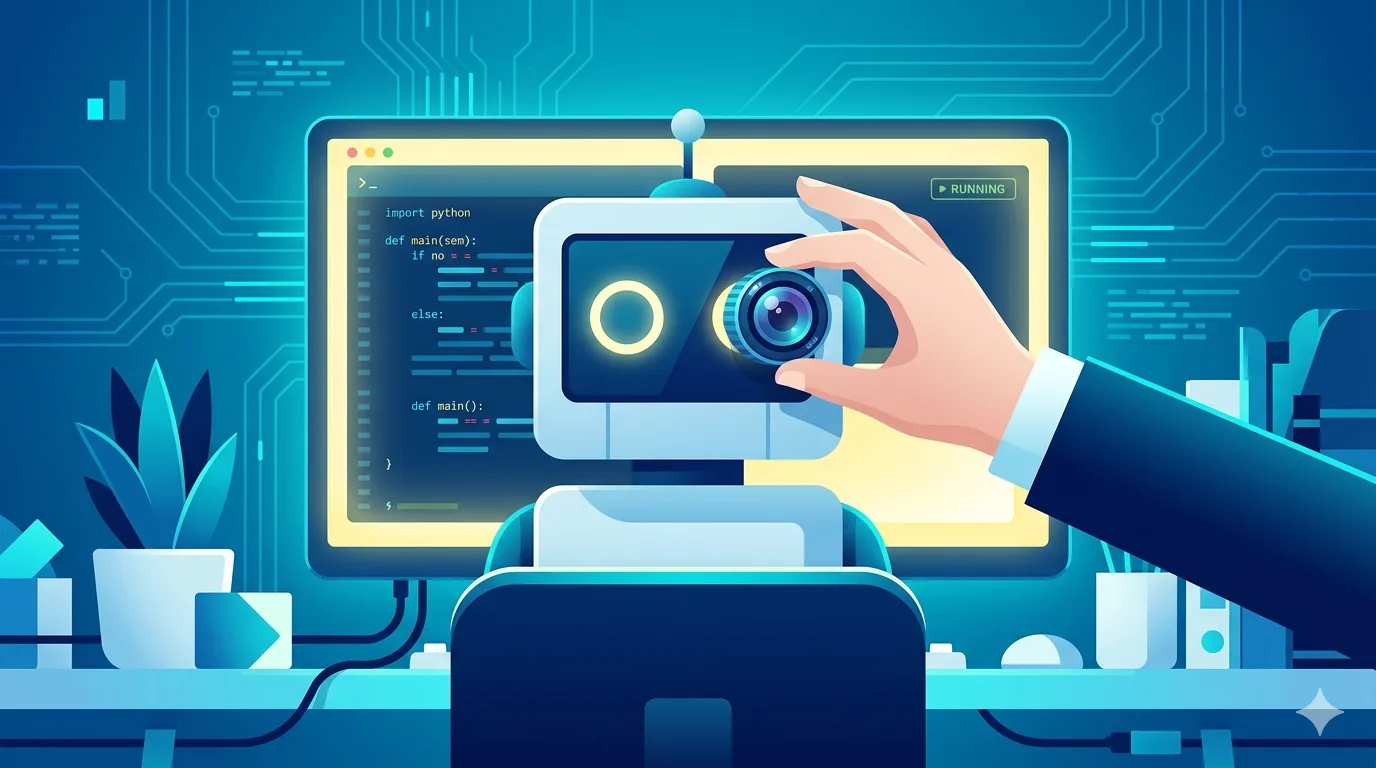
Most text-based AI models are blind. They can reason about code, write essays, and debug complex logic, but show them an image and they have nothing to say. claude-vision-skill fixes that. It forwards images to a vision-capable model API and returns a text description back to the conversation.
Here is what it does, how it works, and how to set it up.
What Is claude-vision-skill?
claude-vision-skill is an open-source tool that adds image recognition to AI models that do not have native vision support. It was originally built for models like DeepSeek, but works with any AI assistant that can execute scripts.
The core idea is simple:
- A user sends an image in the conversation
- The script converts the image to base64
- It sends the encoded image to a vision model API using the OpenAI-compatible format
- The text description is returned to the conversation
No manual commands needed. Once configured, you drop an image into the chat and the AI processes it automatically.
Why this matters
Many developers use cost-effective AI models through proxies like ccswitch or CodingAPI. These models are strong on text tasks but often lack vision. claude-vision-skill lets you keep your preferred model for text while offloading image understanding to a specialized vision model.
How It Works Under the Hood
The project contains three key files:
| File | Purpose |
|---|---|
vision.js | Core script. Handles image reading, base64 encoding, and API communication |
CLAUDE.md | Project instructions telling the AI when and how to use vision.js |
cyberboss-setup.md | Optional setup for the Cyberboss WeChat platform |
The script uses the OpenAI-compatible API format, which means it works with any provider that follows the same spec. You can plug in Alibaba Cloud Bailian, OpenAI, or a self-hosted endpoint.
Choosing a Vision API Provider
Before installing, you need a vision-capable API. A few options:
Option 1: Alibaba Cloud Bailian (recommended)
- Models:
qwen3.5-omni-plusorqwen-vl-max - Cost: New users get 1 million free tokens (roughly 0.02 yuan per request after that)
- Cheapest option, good Chinese language support, easy signup
Option 2: OpenAI
- Model:
gpt-4o-mini - Cost: Standard OpenAI pricing
- Best English-language image understanding, requires international payment
Option 3: Any OpenAI-compatible service
- Set a custom
BASE_URLand model name invision.js - Works with local models, third-party proxies, or self-hosted endpoints
Installation
Method A: Automatic setup (recommended)
This is the easiest path. Clone the repository and let Claude Code do the rest.
Step 1: Clone the repository
git clone https://github.com/asuojun/claude-vision-skill.gitStep 2: Ask Claude Code to configure it
Open Claude Code and paste:
Read the claude-vision-skill README and help me configure vision support.Claude Code will prompt you for:
- Your preferred vision service
- Your API key
- The model name
It handles the file placement and configuration automatically.
Method B: Manual setup
If you prefer full control, follow these steps.
Step 1: Copy vision.js to your project root
Place the vision.js file in the root directory of your project.
Step 2: Configure your API credentials
Open vision.js and replace the placeholders:
// Replace these values
const API_KEY = "sk-xxx";        // Your actual API key
const MODEL = "xxx";             // Model name, e.g., "qwen-vl-max"
const BASE_URL = "xxx";          // API endpoint (keep default for Qwen)
For Alibaba Cloud Bailian, the default BASE_URL already points to the correct endpoint. You only need to fill in API_KEY and MODEL.
For OpenAI, change BASE_URL to:
https://api.openai.com/v1For other providers, use their OpenAI-compatible endpoint.
Step 3: Copy CLAUDE.md to your project root
Place the CLAUDE.md file alongside vision.js. This file contains instructions that tell Claude Code when and how to invoke the vision script.
Step 4: Test it
Send an image in your Claude Code conversation. If configured correctly, the AI will automatically process the image and describe its contents.
Cyberboss / WeChat Integration
If you are running the Cyberboss platform (a WeChat-based AI assistant), there is an additional step:
- Complete the base setup above
- Follow the instructions in
cyberboss-setup.mdto modify the persona andsrc/core/app.js - Restart Cyberboss
After this, sending images through WeChat will trigger automatic image recognition.
Troubleshooting
Image not being recognized
- Verify
vision.jsis in the project root - Check that
CLAUDE.mdis also in the project root - Confirm your API key is valid and has remaining credits
API errors or timeouts
- Test your API key directly with a curl request first
- Ensure
BASE_URLincludes/v1if your provider requires it - Check network connectivity to the vision API endpoint
Wrong or empty descriptions
- Try a different vision model (e.g., switch from
qwen-vl-maxtoqwen3.5-omni-plus) - Some models perform better on certain image types (documents vs. photos vs. screenshots)
Final thoughts
claude-vision-skill fills a real gap in most Claude Code setups. You get image recognition without switching models or paying for an expensive multimodal API for everyday tasks.
Setup takes about five minutes. After that, you no longer have to manually describe images to your AI.
Repository: claude-vision-skill on GitHub
Related articles:
- Install Claude Code first — Set up Claude Code on Windows before adding vision
- Use DeepSeek as a cheaper alternative — Route Claude Code through DeepSeek to cut API costs