
How to Install Claude Code (with VS Code) on Windows
I recently set up Claude Code on a Windows machine and connected it to CodingAPI through ccswitch. The official docs cover the basics, but there are a few Windows-specific issues that can slow you down, especially around environment variables and proxy configuration.
This guide walks through the exact setup I used, from installing Node.js to getting Claude Code working inside VS Code.
What You’ll Need
Before starting, make sure you have:
Windows 10 or Windows 11
VS Code
Node.js 18+
A CodingAPI API key
ccswitch
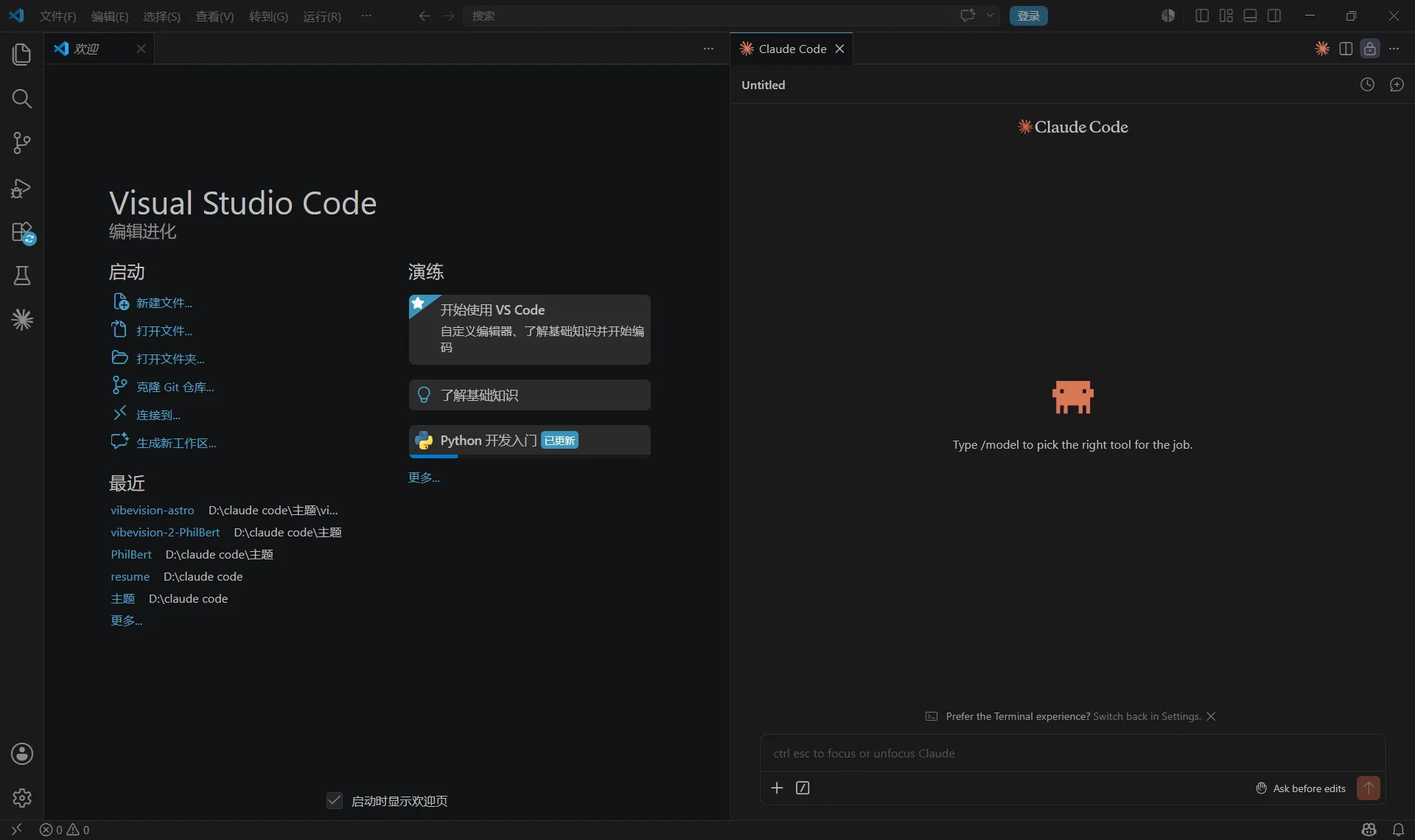
Step 1: Install Node.js
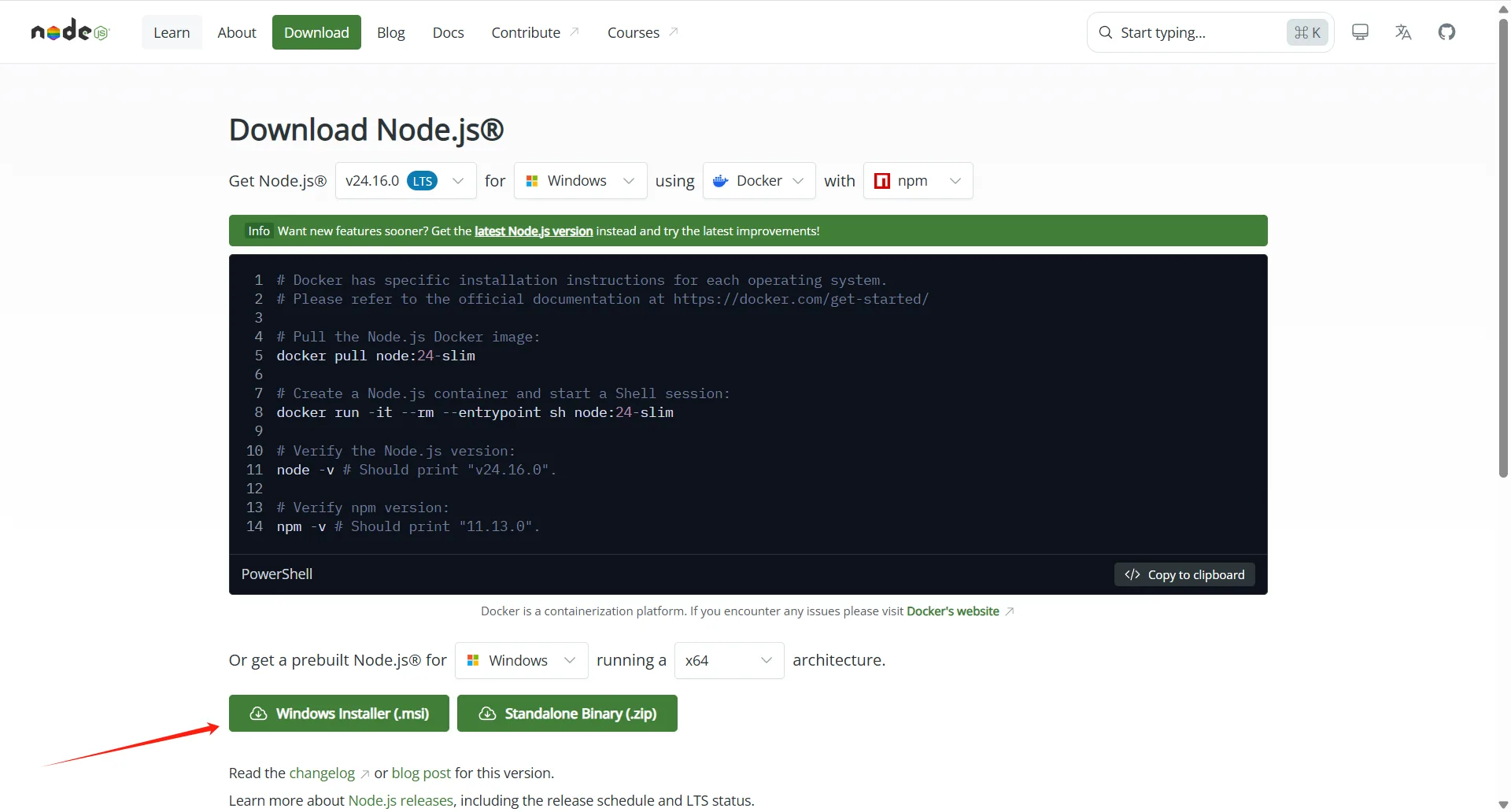
Claude Code needs Node.js.
Download the latest LTS version from nodejs.org.
After installation, open PowerShell and verify:
node -v npm -v
If both commands return a version number, you’re good.
Step 2: Install VS Code
Download VS Code from code.visualstudio.com.
During installation, enable:
Add to PATH
Register Code as an editor
These make terminal integration much smoother later.
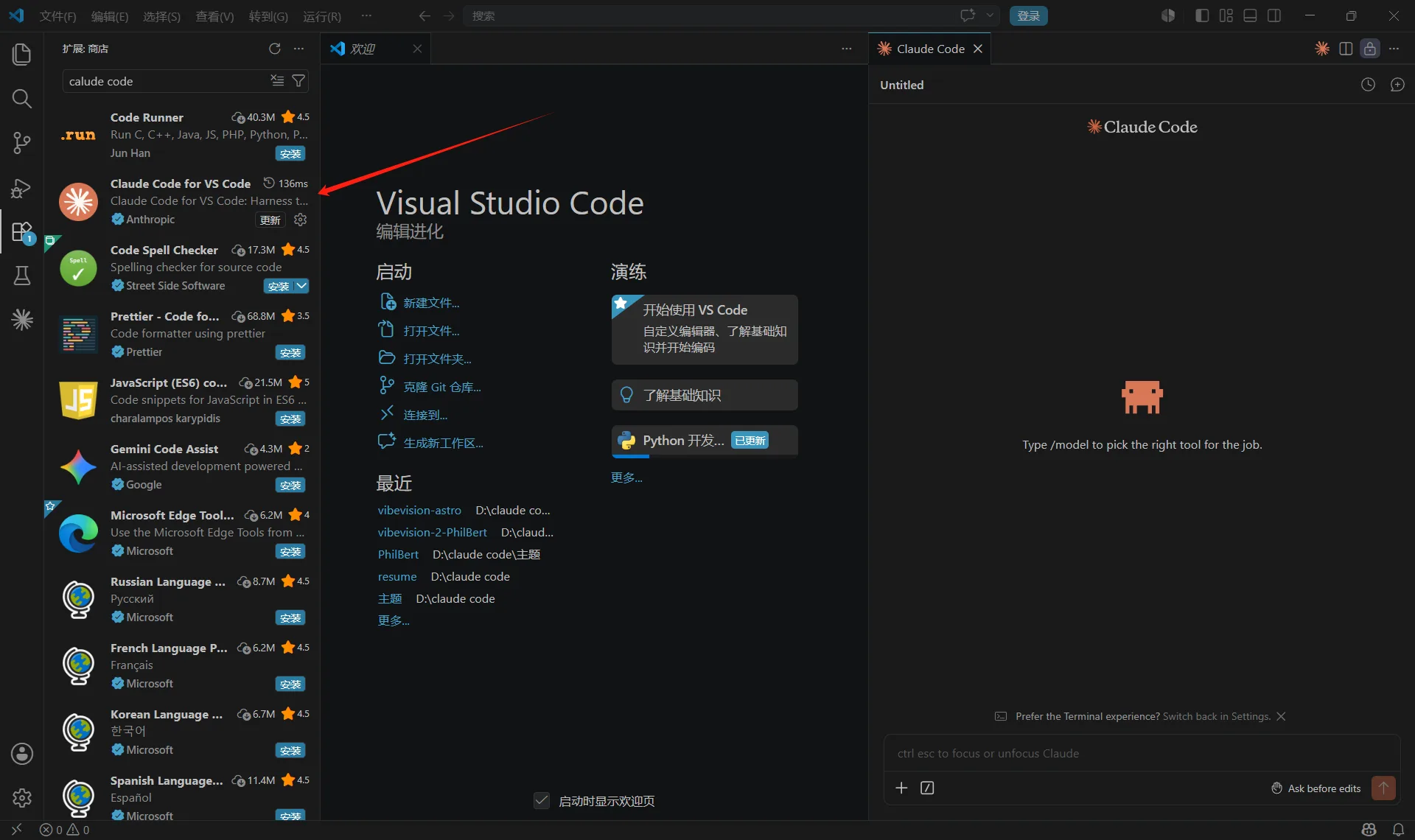
Step 3: Install the Claude Code Extension
Open VS Code.
Navigate to:
Extensions -> Search “Claude Code”
Install the extension published by Anthropic.
Once installed, a Claude panel should appear in the sidebar.
Step 4: Install Claude Code CLI
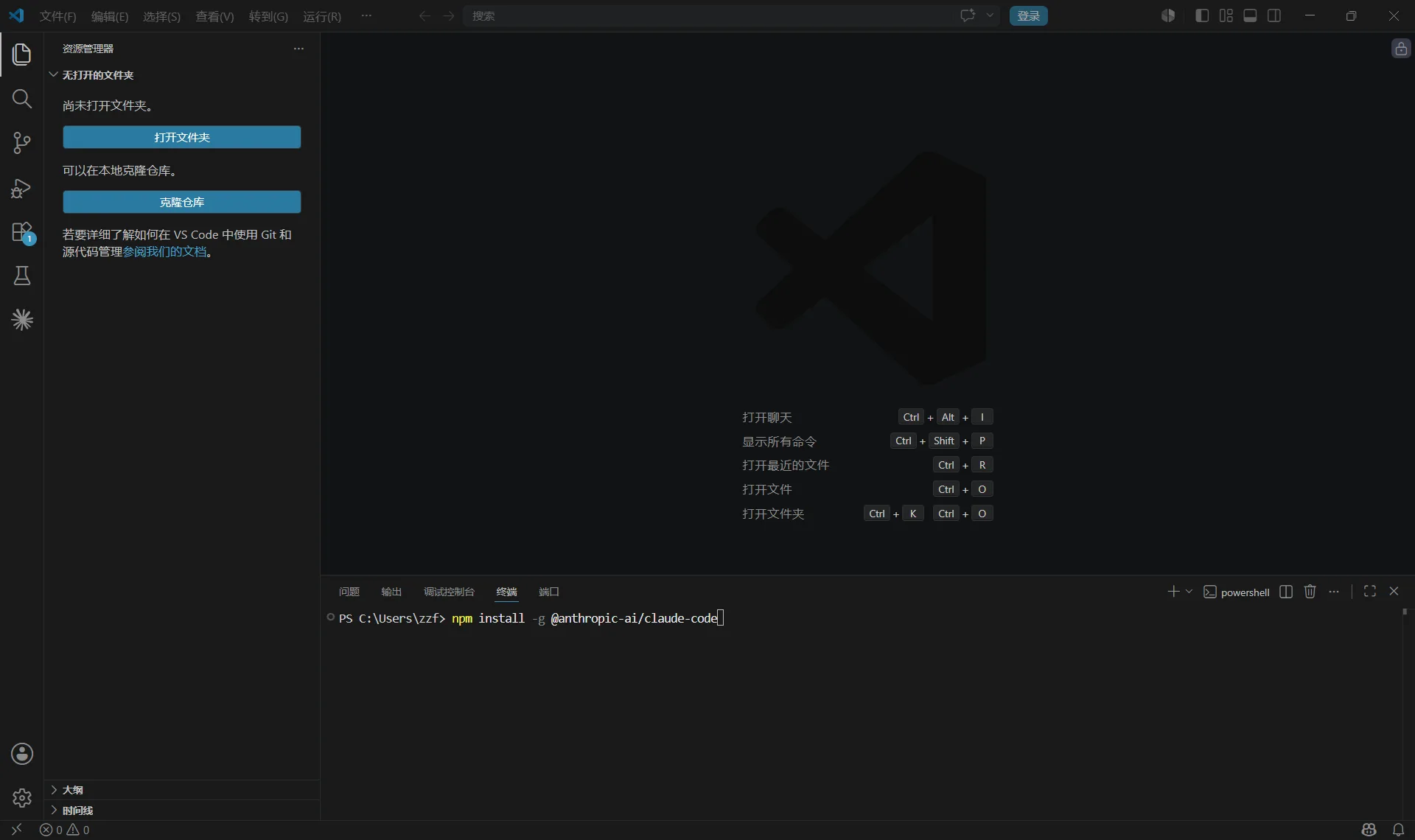
Open PowerShell as Administrator:
npm install -g @anthropic-ai/claude-code
Verify the installation:
claude —version
If Windows cannot find the command, restart your terminal first.
Step 5: Download and Configure ccswitch
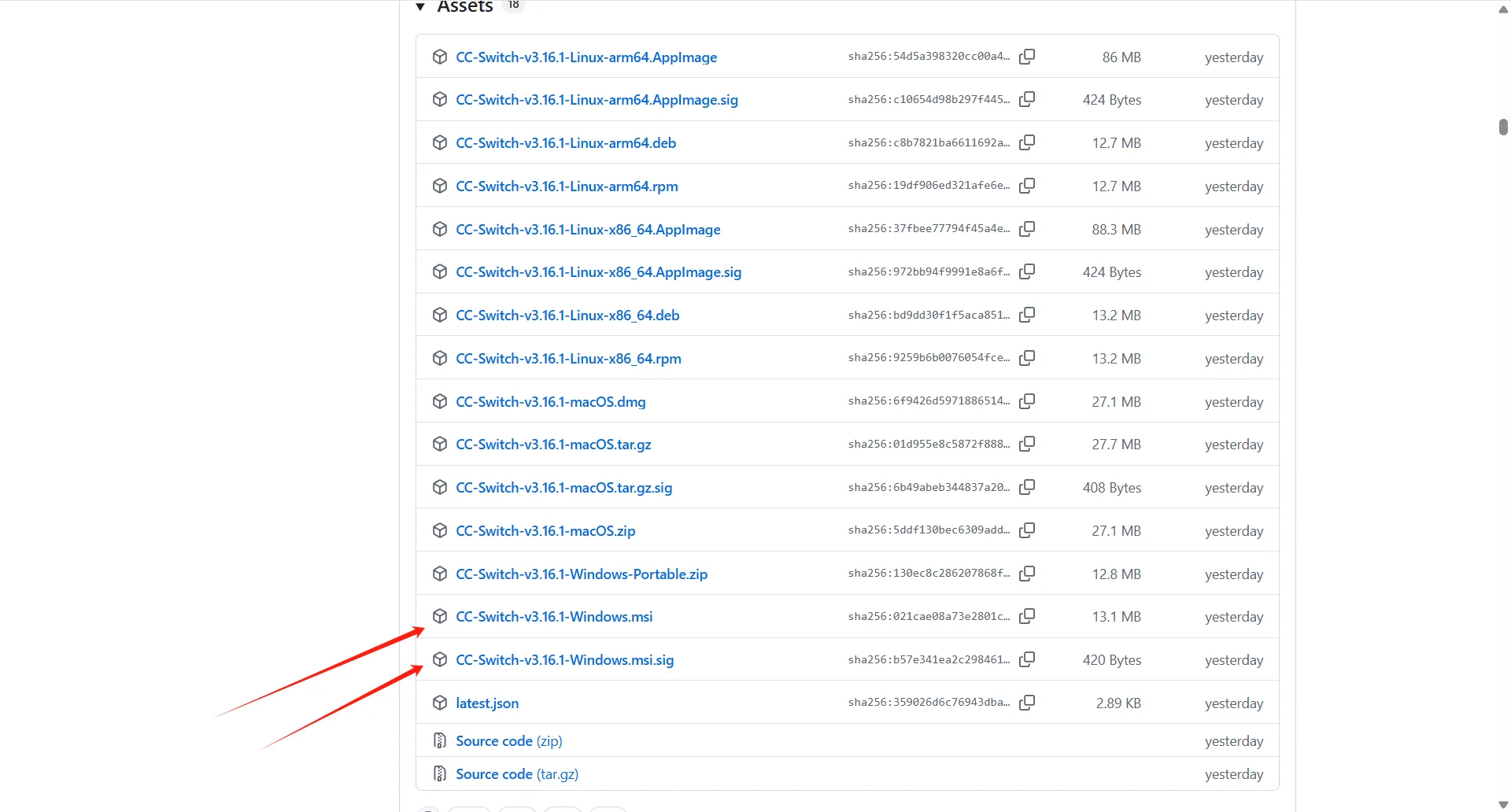
Claude Code normally expects an Anthropic API key.
To connect through CodingAPI, download ccswitch from GitHub and launch it.
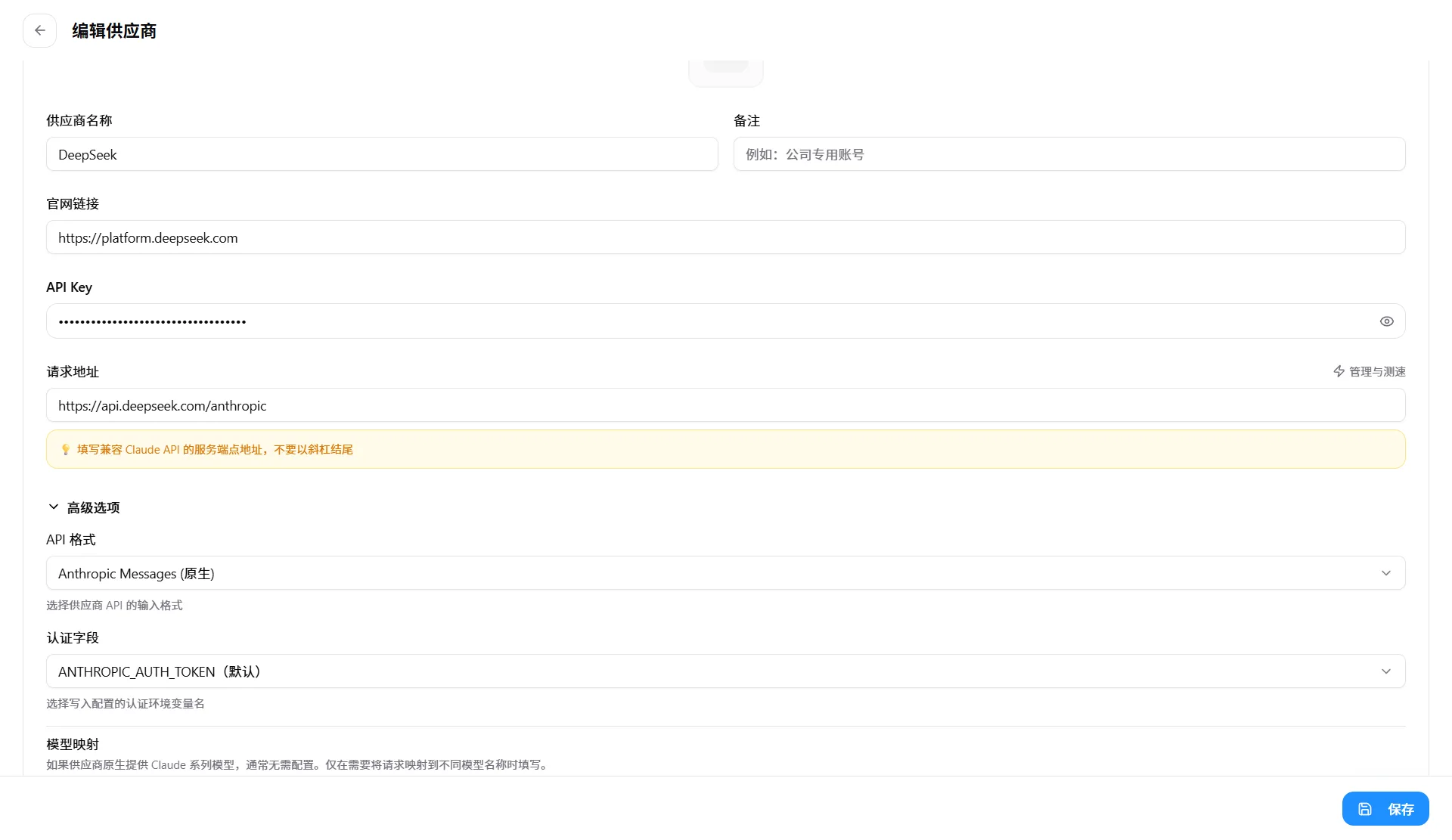
Configure:
Setting Value
API Key Your CodingAPI key Base URL CodingAPI endpoint Model Optional
Start the proxy service and note the local address.
Example:
http://127.0.0.1:8080
Step 6: Launch Claude Code
Open any project folder.
Then either:
Click the Claude sidebar icon
Run:
claude
or
Ctrl+Shift+P -> Claude Code: Open Chat
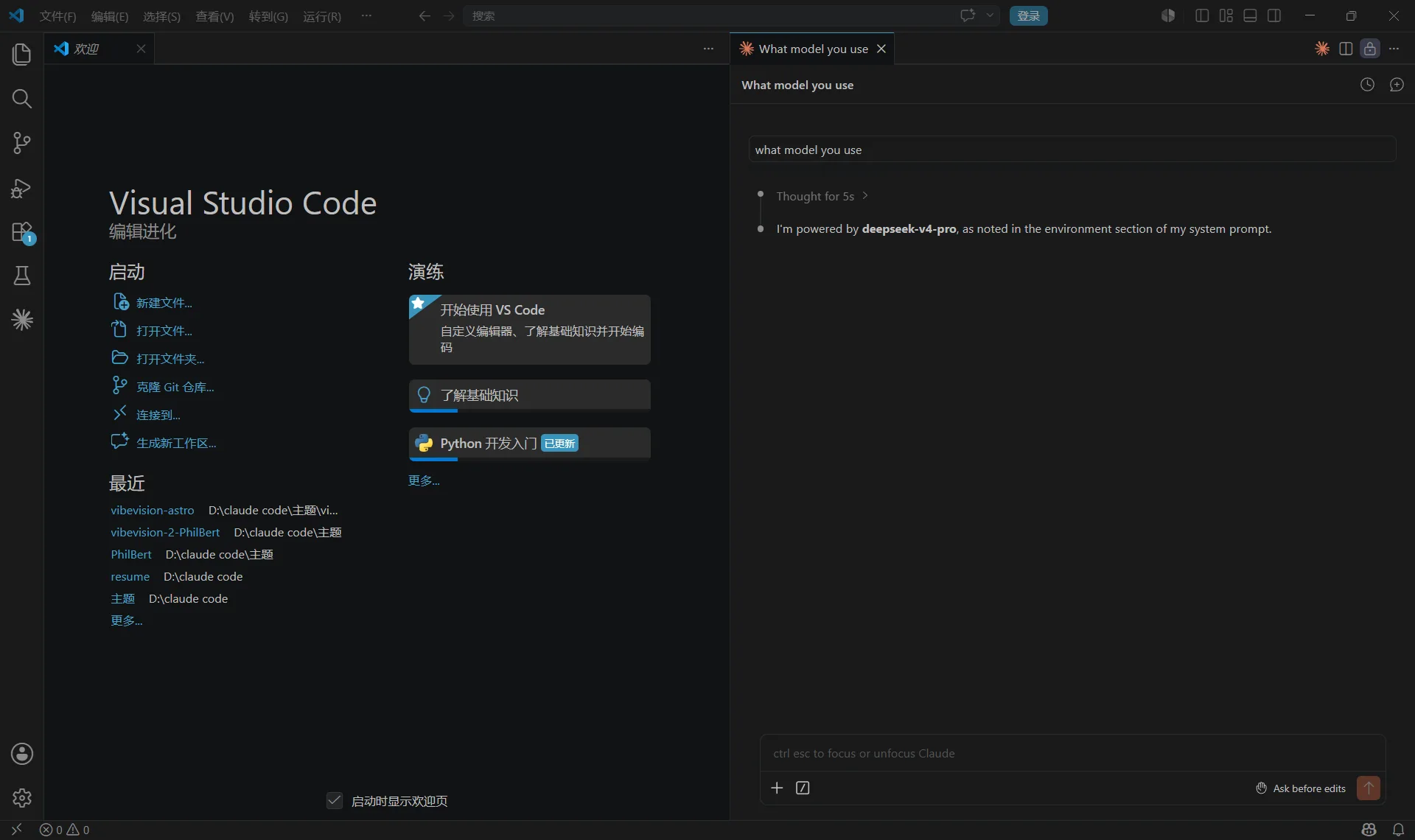
Try a simple prompt:
Explain this file.
If everything is configured correctly, Claude Code should respond right away.
Common Problems
“claude” is not recognized
Add the npm global directory to PATH:
%AppData%\npm
Then restart the terminal.
CLI Not Found
VS Code cannot locate the Claude CLI.
Run:
claude —version
If the command works in PowerShell but not VS Code, restart VS Code.
Invalid API Key
Check:
ANTHROPIC_API_KEY
and verify the key is active in CodingAPI.
Connection Refused
Verify:
ccswitch is running
Port number is correct
Base URL ends with /v1
Conclusion
Once Node.js, Claude Code, and ccswitch are configured correctly, the rest is straightforward.
Most issues come down to environment variables or an incorrect proxy endpoint. After the initial setup, Claude Code works smoothly inside VS Code and supports different API providers through ccswitch.
Next steps:
- How to use DeepSeek to cut costs — Route Claude Code requests through DeepSeek for cheaper inference
- Configure your Claude.md for better results — Set up project instructions so Claude Code follows your conventions